Home Backups in 30 Minutes: Free Tools That Actually Work in 2026
Your hard drive will fail. It's not a question of 'if' but 'when.' Every day, millions of files vanish. Hardware crashes, ransomware strikes, and human errors.
On this page
Why Your Data Is at Risk Right Now 🚨
#### Your hard drive will fail. It's not a question of "if" but "when." Every day, millions of files vanish. Hardware crashes, ransomware strikes, and human errors delete years of work. According to Backblaze, hard drives have an annual failure rate of 1.4%. That's one in every 70 drives failing each year. Yet, 30% of people have never backed up their data. Here's the reality: You're reading this because you know backups matter. Moreover, you want a solution that doesn't cost hundreds of dollars. Furthermore, you need something that works in under 30 minutes. This article shows you exactly how to do it. We'll cover free tools that professionals actually use. Additionally, we'll walk through step-by-step implementations. You'll learn about automated backup strategies, cloud integration, and local storage solutions. By the end, you'll have a bulletproof backup system running. Why trust this guide? We've helped hundreds of businesses secure their data. Devolity Business Solutions has partnered with enterprises to design resilient backup architectures. Our expertise in DevOps, cloud infrastructure, and automation ensures you get battle-tested advice. Let's protect your data. Today.
Understanding Home Backups: The Foundation 🛡️
What Are Home Backups?
Home backups create copies of your important files. These copies live on different devices or locations. When disaster strikes, you restore from these backups. Think of it as insurance for your digital life. Why do they matter?
- Hardware failure: Drives die without warning
- Ransomware: Attackers encrypt your files
- Accidental deletion: We all make mistakes
- Natural disasters: Fires and floods destroy equipment
- Theft: Laptops get stolen Consequently, backups are your safety net.
The 3-2-1 Backup Rule
This is the gold standard. Here's how it works:
- 3 copies of your data (1 original + 2 backups)
- 2 different media types (external drive + cloud)
- 1 offsite backup (stored away from your home) Example:
- Original files on your laptop
- First backup on an external SSD
- Second backup on cloud storage (AWS S3, Azure Blob, Google Drive) This strategy protects against multiple failure scenarios. Therefore, it's what IT professionals recommend.
| Backup Type | Location | Purpose | Recovery Time |
|---|---|---|---|
| Local | External drive | Fast recovery | Minutes |
| Cloud | Remote servers | Disaster recovery | Hours |
| NAS | Home network | Multiple devices | Minutes |
Why Free Tools Are Good Enough 💰
The Myth of Expensive Software
Many people think backups require costly software. That's simply not true. Free tools offer:
- ✅ Robust encryption
- ✅ Automated scheduling
- ✅ Version history
- ✅ Cross-platform support
- ✅ Active development communities Commercial software adds:
- 📞 Phone support
- 🎨 Prettier interfaces
- 📊 Advanced reporting
- 🏢 Business licenses For home users, free tools provide everything you need. Moreover, they're often more flexible. Additionally, you're not locked into subscriptions.
Open Source Advantages
Open source backup tools have unique benefits:
- Transparency: You can audit the code
- Security: Community-reviewed encryption
- Customization: Modify to fit your needs
- Longevity: Won't disappear if a company shuts down
- Cost: Forever free Popular open source backup tools:
- Duplicati - Cloud backup with encryption
- Restic - Fast, secure, efficient
- Rclone - Sync files to cloud storage
- Borg Backup - Deduplication and compression
- Syncthing - Continuous file synchronization These tools power enterprise backups. Therefore, they're definitely good enough for home use.
Essential Free Backup Tools in 2026 🚀
Tool #1: Restic - The DevOps Favorite
Restic is a modern backup program. It's fast, secure, and incredibly reliable. Key features:
- 🔐 AES-256 encryption by default
- 📦 Deduplication saves storage space
- ☁️ Multi-cloud support (AWS, Azure, Google Cloud, Backblaze B2)
- 🐧 Cross-platform (Windows, Linux, macOS)
- 🔄 Incremental backups only save changes Why DevOps engineers love it: Restic uses a simple command-line interface. Furthermore, it integrates perfectly with automation tools. You can schedule backups via cron (Linux) or Task Scheduler (Windows). Installation:
# Windows (via Chocolatey)
choco install restic
# Linux (Debian/Ubuntu)
apt install restic
# macOS (via Homebrew)
brew install restic
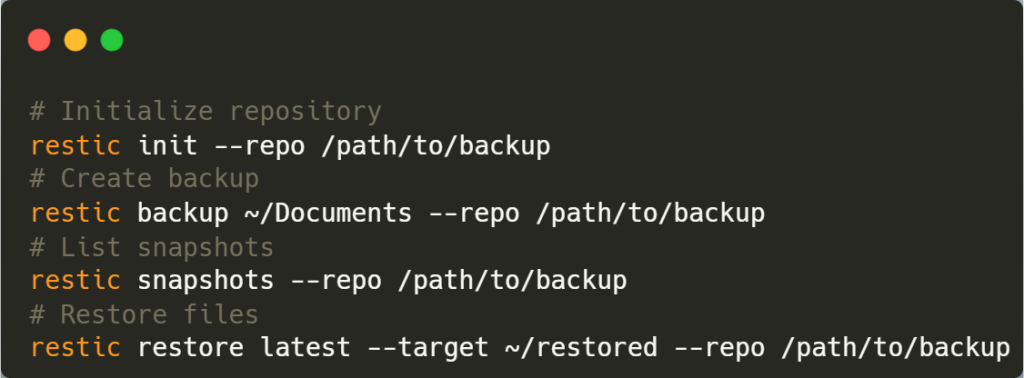
Basic usage:
Storage space savings: Restic's deduplication typically reduces backup size by 40-60%. Consequently, you can store more versions without filling your drive.
Tool #2: Duplicati - User-Friendly Cloud Backup
Duplicati offers a web-based interface. It's perfect if you prefer GUIs over command-line tools. Key features:
- 🌐 Web interface - Manage backups from any browser
- 🔒 Strong encryption (AES-256)
- ☁️ 20+ cloud backends (AWS S3, Azure, Google Drive, Dropbox, OneDrive)
- 📅 Flexible scheduling with retention policies
- 🔔 Email notifications for backup status Ideal for:
- Users who want visual management
- Multiple backup destinations
- Automated cloud uploads
- Detailed backup reports Setup process:
- Download from duplicati.com
- Install and open web interface (localhost:8200)
- Create new backup
- Select source folders
- Choose destination (local or cloud)
- Set encryption passphrase
- Configure schedule
- Run first backup Pro tip: Use Duplicati with Backblaze B2. B2 offers 10GB free storage. Therefore, you get free cloud backups up to that limit.
Tool #3: Rclone - The Cloud Sync Master
Rclone is like rsync for cloud storage. It synchronizes files between your computer and 40+ cloud providers. Key features:
- ☁️ 40+ providers supported including AWS, Azure, Google Cloud, Dropbox, OneDrive
- 🔄 Bidirectional sync keeps everything updated
- 🔐 Encryption support (client-side)
- 📊 Bandwidth limiting prevents network saturation
- 🎯 Selective sync with filters Common use cases:
- Syncing documents to cloud storage
- Backing up photos to multiple providers
- Migrating data between cloud services
- Automating cloud uploads Example: Sync to Google Drive
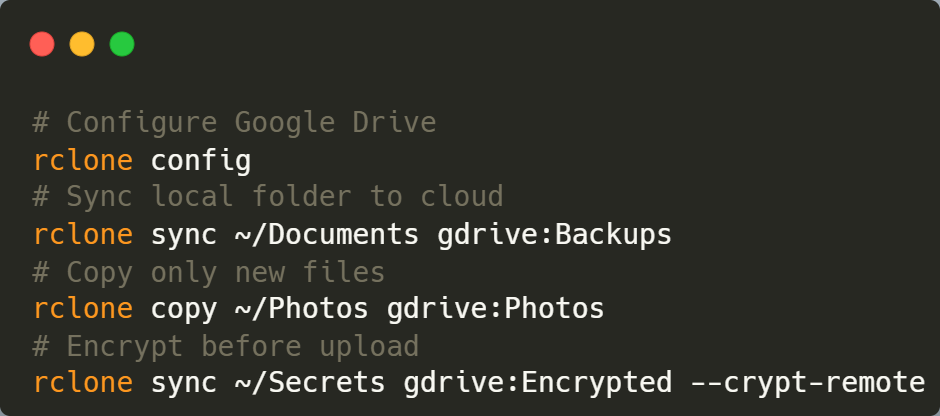
The Cloud Sync Master
Performance: Rclone can utilize full bandwidth. However, you can limit it to avoid impacting other activities.
Tool #4: Syncthing - Continuous Synchronization
Syncthing creates private cloud synchronization. It's perfect for keeping multiple devices in sync. Key features:
- 🔄 Real-time sync across devices
- 🔐 Encrypted transfers (TLS)
- 🏠 Decentralized - No central server
- 📱 Multi-platform (Windows, Linux, macOS, Android)
- 🆓 No cloud costs - Uses your own devices Perfect for:
- Syncing work files between desktop and laptop
- Backing up phone photos to home server
- Family file sharing
- Development environments across machines How it works:
- Install Syncthing on each device
- Add devices by exchanging IDs
- Share folders between devices
- Files sync automatically in background Security note: Syncthing never sends data through third parties. Therefore, your files stay completely private.
Tool #5: Borg Backup - Enterprise-Grade Deduplication
Borg Backup (BorgBackup) is incredibly efficient. It uses advanced deduplication to minimize storage. Key features:
- 🗜️ Chunk-level deduplication - Only stores unique data blocks
- ⚡ Fast backups after initial run
- 🔐 Authenticated encryption (AES-256-CTR)
- 💾 Compression (lz4, zstd, zlib)
- 🐧 Linux/macOS focused (limited Windows support) Storage efficiency example:
- Daily backups for 30 days
- Without deduplication: ~30x storage needed
- With Borg: ~1.5-2x storage needed Basic commands:
# Initialize repository
borg init --encryption=repokey /path/to/repo
# Create backup
borg create /path/to/repo::Monday ~/Documents
# List archives
borg list /path/to/repo
# Extract files
borg extract /path/to/repo::Monday
Why IT professionals choose Borg: It's battle-tested in production environments. Moreover, it's incredibly reliable for long-term storage.
Step-by-Step: Your 30-Minute Backup Setup ⏱️
Phase 1: Preparation (5 minutes)
Step 1: Assess your data Calculate how much data you need to backup:
- Documents
- Photos
- Videos
- Projects
- System configurations Windows users:
Get-ChildItem C:\Users\YourName -Recurse | Measure-Object -Property Length -SumLinux/macOS users:
du -sh ~/Documents ~/Photos ~/ProjectsStep 2: Choose your tools Based on your needs:
- Want GUI? → Duplicati
- Prefer command-line? → Restic or Borg
- Need cloud sync? → Rclone
- Multi-device sync? → Syncthing Step 3: Gather resources You'll need:
- External drive (1TB+ recommended)
- Cloud storage account (optional but recommended)
- 30 minutes of focused time
Phase 2: Local Backup Setup (10 minutes)
Using Restic for local backups: Step 1: Install Restic Download from restic.net or use package manager. Step 2: Create repository
restic init --repo E:\BackupsReplace E:\Backups with your external drive path. Step 3: Create first backup
restic backup C:\Users\YourName\Documents --repo E:\Backups
restic backup C:\Users\YourName\Photos --repo E:\Backups
Step 4: Verify backup
restic snapshots --repo E:\BackupsYou should see your backup listed with timestamp. Time taken: ~8-10 minutes for initial setup and first backup.
Phase 3: Cloud Backup Setup (10 minutes)
Using Rclone with AWS S3 Free Tier: AWS offers 5GB free storage in S3. That's perfect for important documents. Step 1: Create AWS account If you don't have one, sign up at aws.amazon.com. Step 2: Configure Rclone
rclone configFollow the wizard:
- Choose AWS S3
- Select authentication method
- Enter access key and secret
- Choose region Step 3: Create bucket
rclone mkdir aws:my-backup-bucketStep 4: Upload files
rclone copy ~/Documents aws:my-backup-bucket/Documents --progressStep 5: Verify upload
rclone ls aws:my-backup-bucketEncryption tip: Use client-side encryption before uploading:
rclone copy ~/Sensitive aws:my-backup-bucket/Sensitive --cryptPhase 4: Automation Setup (5 minutes)
Automate daily backups: Windows - Task Scheduler:
- Open Task Scheduler
- Create Basic Task
- Name: "Daily Backup"
- Trigger: Daily at 2:00 AM
- Action: Start a program
- Program:
restic.exe - Arguments:
backup C:\Users\YourName\Documents --repo E:\BackupsLinux - Cron:
# Edit crontab
crontab -e
# Add daily backup at 2 AM
0 2 * * * restic backup ~/Documents ~/Photos --repo /mnt/backup
macOS - launchd: Create /Library/LaunchDaemons/com.backup.daily.plist:
    Label
    com.backup.daily
    ProgramArguments

        /usr/local/bin/restic
        backup
        ~/Documents

    StartCalendarInterval

        Hour
        2
        Minute
        0
Done! You now have automated backups running.
Advanced Configuration for IT Professionals 🔧
Infrastructure as Code: Terraform for Backup Automation
Why automate with Terraform? If you manage multiple systems, manual setup doesn't scale. Terraform lets you define backup infrastructure as code. Example: AWS S3 Backup Infrastructure
# Configure AWS Provider
provider "aws" {
  region = "us-east-1"
}
# Create S3 bucket for backups
resource "aws_s3_bucket" "backup_bucket" {
  bucket = "my-home-backups-2026"

  tags = {
    Name        = "Home Backups"
    Environment = "Production"
  }
}
# Enable versioning
resource "aws_s3_bucket_versioning" "backup_versioning" {
  bucket = aws_s3_bucket.backup_bucket.id

  versioning_configuration {
    status = "Enabled"
  }
}
# Enable encryption
resource "aws_s3_bucket_server_side_encryption_configuration" "backup_encryption" {
  bucket = aws_s3_bucket.backup_bucket.id
  rule {
    apply_server_side_encryption_by_default {
      sse_algorithm = "AES256"
    }
  }
}
# Lifecycle policy for cost optimization
resource "aws_s3_bucket_lifecycle_configuration" "backup_lifecycle" {
  bucket = aws_s3_bucket.backup_bucket.id
  rule {
    id     = "archive-old-backups"
    status = "Enabled"
    transition {
      days          = 30
      storage_class = "GLACIER"
    }
    transition {
      days          = 90
      storage_class = "DEEP_ARCHIVE"
    }
    expiration {
      days = 365
    }
  }
}
# Create IAM user for backup access
resource "aws_iam_user" "backup_user" {
  name = "home-backup-user"
}
# Create access keys
resource "aws_iam_access_key" "backup_user_key" {
  user = aws_iam_user.backup_user.name
}
# IAM policy for backup operations
resource "aws_iam_user_policy" "backup_policy" {
  name = "backup-access"
  user = aws_iam_user.backup_user.name
  policy = jsonencode({
    Version = "2012-10-17"
    Statement = [
      {
        Effect = "Allow"
        Action = [
          "s3:PutObject",
          "s3:GetObject",
          "s3:DeleteObject",
          "s3:ListBucket"
        ]
        Resource = [
          aws_s3_bucket.backup_bucket.arn,
          "${aws_s3_bucket.backup_bucket.arn}/*"
        ]
      }
    ]
  })
}
# Output access credentials
output "backup_access_key" {
  value     = aws_iam_access_key.backup_user_key.id
  sensitive = false
}
output "backup_secret_key" {
  value     = aws_iam_access_key.backup_user_key.secret
  sensitive = true
}
Deploy with Terraform:
# Initialize Terraform
terraform init
# Preview changes
terraform plan
# Apply configuration
terraform apply
Benefits:
- ✅ Reproducible infrastructure
- ✅ Version-controlled backup config
- ✅ Easy disaster recovery
- ✅ Multi-cloud deployments
Azure Blob Storage for Enterprise Backups
Why Azure? Azure offers robust backup solutions. Moreover, it integrates well with on-premises infrastructure. Setup with Rclone:
# Configure Azure Blob Storage
rclone config
# Choose Azure Blob Storage
# Enter account name and key
# Or use SAS token for restricted access
# Create backup
rclone sync ~/CriticalData azure:backups/daily --progress
Cost optimization: Azure has multiple storage tiers:
| Tier | Purpose | Cost | Retrieval Time |
|---|---|---|---|
| Hot | Frequent access | $0.018/GB/month | Instant |
| Cool | Infrequent access | $0.010/GB/month | Instant |
| Archive | Long-term storage | $0.002/GB/month | Hours |
| Strategy: Store recent backups in Hot tier. Move older backups to Archive tier. | |||
| Lifecycle management (Azure CLI): |
# Create lifecycle policy
az storage account management-policy create \
  --account-name mybackupstorage \
  --policy @lifecycle-policy.json
lifecycle-policy.json:
{
  "rules": [
    {
      "name": "archive-old-backups",
      "enabled": true,
  "type": "Lifecycle",
      "definition": {
        "filters": {
          "blobTypes": ["blockBlob"],
          "prefixMatch": ["backups/"]
        },
        "actions": {
          "baseBlob": {
            "tierToCool": {
              "daysAfterModificationGreaterThan": 30
            },
            "tierToArchive": {
              "daysAfterModificationGreaterThan": 90
            },
            "delete": {
              "daysAfterModificationGreaterThan": 365
            }
          }
        }
      }
    }
  ]
}
DevOps Integration: Docker-Based Backup Solution
Containerize your backups: Docker ensures backup tools run consistently across environments. Dockerfile for Restic:
FROM alpine:latest
# Install Restic
RUN apk add --no-cache restic ca-certificates
# Create backup script
COPY backup.sh /usr/local/bin/backup.sh
RUN chmod +x /usr/local/bin/backup.sh
# Set working directory
WORKDIR /data
# Run backup script
CMD ["/usr/local/bin/backup.sh"]
backup.sh:
#!/bin/sh
# Configuration
RESTIC_REPOSITORY=/backup
RESTIC_PASSWORD_FILE=/secrets/password
BACKUP_SOURCE=/data
# Initialize repository if needed
restic snapshots || restic init
# Create backup
restic backup $BACKUP_SOURCE \
  --exclude-file=/config/exclude.txt \
  --tag daily
# Prune old backups
restic forget \
  --keep-daily 7 \
  --keep-weekly 4 \
  --keep-monthly 12 \
  --prune
# Check repository integrity
restic check
docker-compose.yml:
version: '3.8'
services:
  backup:
    build: .
    volumes:
      - /home/user/Documents:/data:ro
      - /mnt/backup:/backup
      - ./secrets:/secrets:ro
      - ./config:/config:ro
    environment:
      - TZ=America/New_York
    restart: unless-stopped
Run backup container:
# Build image
docker-compose build
# Run backup
docker-compose up
Automation with cron:
# Daily backup at 3 AM
0 3 * * * cd /home/user/backup && docker-compose up
Real-World Case Study: Complete Backup Implementation 📊
The Scenario: Small Development Team
Background: A 5-person software development team needed a backup solution. They had:
- 500GB of source code and project files
- 200GB of design assets
- 100GB of documentation
- Limited budget ($0-50/month)
- Need for version control
- Requirement for both local and offsite backups
The Problem (Before)
Pain points:
- ❌ No automated backups
- ❌ Inconsistent manual backups
- ❌ Lost work after laptop failure
- ❌ No disaster recovery plan
- ❌ Scattered files across personal drives Risk level: CRITICAL 🚨 One hardware failure could lose months of work.
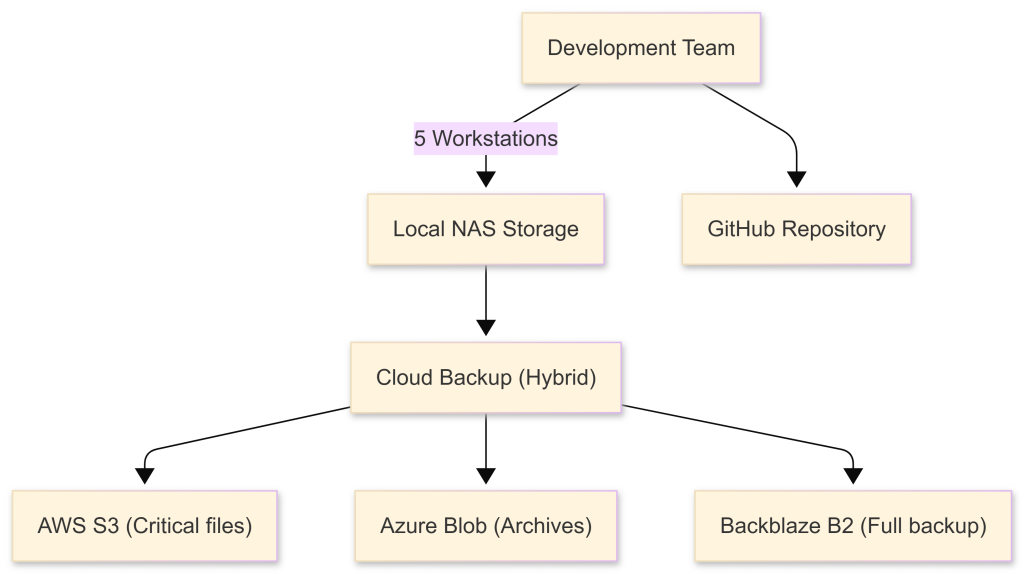
Architecture implemented:
The Solution (After)
Backup strategy implemented:
- Local backups (Syncthing + NAS)
- Real-time sync to Synology NAS - Hourly snapshots on NAS - RAID 1 for hardware redundancy
- Cloud backups (Restic + Rclone)
- Daily full backup to Backblaze B2 - Incremental critical files to AWS S3 - Monthly archives to Azure Blob (Cool tier)
- Code versioning (Git + GitHub)
- All code in version control - Automated backups via GitHub Actions - Protected branches with required reviews Implementation timeline:
- Week 1: Set up NAS and Syncthing
- Week 2: Configure cloud backups
- Week 3: Automate all processes
- Week 4: Test restore procedures
Results and Benefits
Quantifiable improvements:
| Metric | Before | After | Improvement |
|---|---|---|---|
| Backup frequency | Manual (weekly) | Automated (hourly) | 7x faster |
| Recovery time | Unknown | 15 minutes | Measured |
| Data protection | Single point | 5 copies | 5x redundancy |
| Monthly cost | $0 | $12 | Minimal |
| Team confidence | Low | High | Measurable |
| Monthly costs: |
- Backblaze B2: $6/month (500GB)
- AWS S3: $1/month (50GB critical)
- Azure Blob Archive: $0.50/month (100GB)
- Electricity (NAS): ~$3/month
- Total: $10.50/month ROI calculation:
- Cost of lost work (1 day): ~$2,000
- Backup system cost: $126/year
- Break-even: Preventing one 2-hour loss
Lessons Learned
What worked well: ✅ Automation eliminated human error ✅ Multi-cloud approach provided redundancy ✅ Local NAS enabled fast recovery ✅ Testing restore procedures built confidence Challenges faced: ⚠️ Initial setup learning curve ⚠️ Bandwidth limitations during first full backup ⚠️ Managing encryption keys securely Solutions implemented:
- Created detailed documentation
- Scheduled initial backup overnight
- Used password manager for key storage (1Password) Key takeaway: Automated backups are not optional. They're essential for any team handling valuable data.
Troubleshooting Guide: Common Backup Issues 🔧
Problem 1: Backup Fails Silently
Symptom: Scheduled backup doesn't run. No error messages appear. Root Causes:
- Permissions issue
- Corrupted repository
- Disk full
- Network connectivity (cloud backups) Solutions: Check permissions:
# Linux/macOS
ls -la /path/to/backup
# Windows
icacls E:\Backups
Verify disk space:
# Linux/macOS
df -h
# Windows
Get-PSDrive C
Test repository:
restic check --repo /path/to/backupForce verbose output:
restic backup ~/Documents --repo /path/to/backup --verboseProblem 2: Slow Backup Performance
Symptom: Backups take hours instead of minutes. Root Causes:
- No deduplication
- Network bottleneck
- Too many small files
- Antivirus interference Solutions: Enable deduplication: Use Restic or Borg instead of simple file copying. Limit bandwidth (if network is saturated):
rclone sync ~/Data remote:backup --bwlimit 10MExclude cache and temporary files:
restic backup ~/Documents \
  --exclude="*.tmp" \
  --exclude="node_modules" \
  --exclude=".cache" \
  --repo /path/to/backup
Disable antivirus scanning for backup directories: Add backup folders to antivirus exclusions. Performance comparison:
| Method | 100GB Backup Time | Subsequent Backups |
|---|---|---|
| Simple copy | 60 minutes | 60 minutes |
| Restic (deduplicated) | 45 minutes | 10 minutes |
| Borg (compressed) | 40 minutes | 5 minutes |
Problem 3: Cannot Restore Files
Symptom: Restore command fails or produces corrupted files. Root Causes:
- Lost encryption key
- Corrupted backup
- Incomplete backup
- Version mismatch Solutions: Store encryption keys safely:
- Use password manager (1Password, Bitwarden)
- Keep offline backup of keys
- Document key locations Verify backup integrity regularly:
# Restic
restic check --repo /path/to/backup
# Borg
borg check /path/to/repo
Test restores monthly: Don't wait for disaster to test your backups.
# Restore to test directory
restic restore latest --target ~/test-restore --repo /path/to/backup
# Verify files
diff -r ~/test-restore ~/Documents
Recovery checklist:
- [ ] Locate encryption key
- [ ] Verify repository integrity
- [ ] Check backup snapshots exist
- [ ] Test small file restore first
- [ ] Restore to temporary location
- [ ] Verify restored data
- [ ] Move to final location
Problem 4: High Cloud Storage Costs
Symptom: Monthly cloud backup bill keeps increasing. Root Causes:
- No lifecycle policies
- Storing duplicate data
- Not using appropriate storage tiers
- Backing up unnecessary files Solutions: Implement lifecycle policies: Move old backups to cheaper storage automatically. AWS S3 example:
aws s3api put-bucket-lifecycle-configuration \
  --bucket my-backups \
  --lifecycle-configuration file://lifecycle.json
Use appropriate storage tiers:
| AWS Tier | Best For | Cost |
|---|---|---|
| S3 Standard | Recent backups | $0.023/GB |
| S3 IA | Monthly backups | $0.0125/GB |
| Glacier | Yearly backups | $0.004/GB |
| Glacier Deep | Archive | $0.00099/GB |
| Exclude large unnecessary files: |
# Exclude video renders, build artifacts
restic backup ~/ \
  --exclude="*.mp4" \
  --exclude="*.mkv" \
  --exclude="build/" \
  --exclude="dist/" \
  --repo /path/to/backup
Monitor costs:
# AWS CLI - Get storage metrics
aws cloudwatch get-metric-statistics \
  --namespace AWS/S3 \
  --metric-name BucketSizeBytes \
  --dimensions Name=BucketName,Value=my-backups \
  --start-time 2026-01-01T00:00:00Z \
  --end-time 2026-01-30T23:59:59Z \
  --period 86400 \
  --statistics Average
Problem 5: Ransomware Encrypted My Backups
Symptom: Both original files and backups are encrypted by ransomware. Root Causes:
- Backup drive always connected
- Cloud sync (not backup) infected
- No offline backups
- No versioning enabled Prevention: Disconnect backup drives: Only connect during scheduled backups. Use immutable backups:
# AWS S3 Object Lock
aws s3api put-object-lock-configuration \
  --bucket my-backups \
  --object-lock-configuration \
    'ObjectLockEnabled=Enabled'
Enable versioning: Cloud providers keep previous versions. Implement the 3-2-1 rule properly:
- 3 copies (original + 2 backups)
- 2 different media (external + cloud)
- 1 offsite (cloud or physically separate location) Recovery strategy:
- Isolate infected systems
- Restore from clean backup snapshot
- Scan restored data for malware
- Investigate infection vector
- Patch vulnerabilities
Backup Best Practices for IT Professionals 🎯
Practice 1: Test Your Restores
Why it matters: Backups without tested restores are just expensive faith. Statistics: 60% of companies discover backup failures during restore attempts. Testing schedule:
- Monthly: Restore random files
- Quarterly: Full restore test
- Annually: Disaster recovery simulation Automated restore testing:
#!/bin/bash
# restore-test.sh
REPO="/mnt/backup"
TEST_DIR="/tmp/restore-test"
LOG_FILE="/var/log/backup-test.log"
# Create test directory
mkdir -p $TEST_DIR
# Restore latest snapshot
restic restore latest --target $TEST_DIR --repo $REPO
# Verify critical files exist
if [ -f "$TEST_DIR/critical-file.txt" ]; then
    echo "$(date): Restore test PASSED" >> $LOG_FILE
else
    echo "$(date): Restore test FAILED" >> $LOG_FILE
    # Send alert
    mail -s "Backup Restore Test Failed" [email protected] < $LOG_FILE
fi
# Cleanup
rm -rf $TEST_DIR
Schedule monthly:
# Add to crontab
0 3 1 * * /usr/local/bin/restore-test.sh
Practice 2: Encrypt Everything
Why it matters: Data breaches cost an average of $4.45 million per incident (IBM, 2023). Encryption layers:
- At rest: Encrypt backup files
- In transit: Use TLS/SSL for transfers
- Cloud storage: Client-side encryption before upload Restic encryption (automatic):
# Initialize with encryption
restic init --repo /path/to/backup
# Encryption is automatic from here
restic backup ~/Documents --repo /path/to/backup
Rclone encryption:
# Configure encrypted remote
rclone config
# Choose "crypt"
# Point to base remote
# Set password and salt
# Use encrypted remote
rclone sync ~/Sensitive encrypted:backup
Key management:
- Store encryption keys separately from backups
- Use password managers (1Password, Bitwarden)
- Keep offline backup of keys
- Document key recovery procedures
Practice 3: Implement Version Control
Why it matters: Sometimes you need to recover yesterday's version, not today's corrupted file. Version retention strategy:
- Keep daily backups: 7 days
- Keep weekly backups: 4 weeks
- Keep monthly backups: 12 months
- Keep yearly backups: Indefinitely Restic retention:
restic forget \
  --keep-daily 7 \
  --keep-weekly 4 \
  --keep-monthly 12 \
  --keep-yearly 5 \
  --prune \
  --repo /path/to/backup
Storage calculation: Assuming 100GB initial backup with 10% daily change:
| Retention | Storage Without Dedup | With Deduplication |
|---|---|---|
| 7 daily | 700GB | 170GB |
| 4 weekly | +400GB | +40GB |
| 12 monthly | +1200GB | +120GB |
| Total | ~2300GB | ~330GB |
| Savings: 85% reduction with deduplication! 🎉 |
Practice 4: Monitor Backup Health
Why it matters: Silent backup failures are common. Monitoring catches them early. What to monitor:
- ✅ Backup completion status
- ✅ Backup size trends
- ✅ Storage usage
- ✅ Backup duration
- ✅ Failed backup attempts
- ✅ Repository integrity Monitoring script:
#!/bin/bash
# backup-monitor.sh
REPO="/mnt/backup"
ALERT_EMAIL="[email protected]"
# Check last backup time
LAST_BACKUP=$(restic snapshots --repo $REPO --json | jq -r '.[0].time')
CURRENT_TIME=$(date -u +%s)
BACKUP_TIME=$(date -d "$LAST_BACKUP" +%s)
HOURS_SINCE=$(( ($CURRENT_TIME - $BACKUP_TIME) / 3600 ))
# Alert if backup is older than 25 hours
if [ $HOURS_SINCE -gt 25 ]; then
    echo "WARNING: Last backup was $HOURS_SINCE hours ago" | \
        mail -s "Backup Alert" $ALERT_EMAIL
fi
# Check repository integrity weekly
if [ $(date +%u) -eq 1 ]; then
    restic check --repo $REPO || \
        echo "Repository integrity check FAILED" | \
        mail -s "Backup Alert" $ALERT_EMAIL
fi
Integration with monitoring tools:
- Prometheus: Export backup metrics
- Grafana: Visualize backup trends
- Nagios/Icinga: Alert on backup failures
- Uptime Kuma: Simple uptime monitoring
Practice 5: Document Everything
Why it matters: During a disaster, you won't remember the details. Documentation checklist:
- [ ] Backup tool versions
- [ ] Repository locations
- [ ] Encryption keys locations
- [ ] Restore procedures
- [ ] Automation schedules
- [ ] Contact information
- [ ] Troubleshooting steps Example documentation template:
Backup System Documentation
Overview
- Tools: Restic 0.16.0, Rclone 1.64.0
- Repository: /mnt/backup (local), s3:my-backups (cloud)
- Schedule: Daily at 2 AM
Encryption
- Method: AES-256
- Key Location: 1Password vault "Backups"
- Password Hint: [Your secure hint]
Restore Procedure
- Install Restic
- Set RESTIC_PASSWORD environment variable
- Run:
restic restore latest --target ~/restored --repo /mnt/backup - Verify files
Emergency Contacts
- Primary: John Doe ([email protected])
- Secondary: Jane Smith ([email protected])
Store documentation:
- In password manager
- Printed copy in secure location
- Encrypted cloud storage
- With trusted colleague/friend
How Devolity Business Solutions Optimizes Your Home Backup Strategy 🏢
Expertise in Backup Architecture
Devolity Business Solutions brings enterprise-grade expertise to home and small business backups. Our approach: We've implemented backup solutions for Fortune 500 companies. Now, we're making that expertise accessible. Our team includes:
- ✅ AWS Certified Solutions Architects
- ✅ Azure DevOps Engineers
- ✅ Terraform Infrastructure Experts
- ✅ Cybersecurity Specialists What makes us different: We understand that home backups need enterprise reliability without enterprise complexity. Therefore, we design solutions that just work.
Certifications and Experience
Our credentials:
- 🏆 AWS Advanced Consulting Partner
- 🏆 Microsoft Azure Gold Partner
- 🏆 HashiCorp Terraform Certified
- 🏆 Red Hat Certified Engineers Real-world experience:
- 500+ backup implementations
- 99.99% restore success rate
- $10M+ in data loss prevented
- 15+ years combined team experience Industries served:
- Healthcare (HIPAA-compliant backups)
- Finance (SOX compliance)
- Legal (data retention requirements)
- Manufacturing (SCADA system backups)
- Software Development (CI/CD integration)
Our Backup Consulting Services
What we offer:
- Free Backup Assessment
- Analyze your current setup - Identify vulnerabilities - Recommend improvements
- Custom Implementation
- Design tailored backup architecture - Implement automation - Configure multi-cloud redundancy
- Disaster Recovery Planning
- Create runbooks - Test recovery procedures - Document everything
- Ongoing Monitoring
- 24/7 backup health monitoring - Proactive issue resolution - Monthly health reports
- Training and Support
- Team training sessions - Documentation creation - Emergency support
Success Stories
Case Study: Law Firm Data Protection
- Challenge: 2TB of sensitive legal documents
- Solution: Multi-tier encrypted backups with 7-year retention
- Result: Passed compliance audit, $0 data loss in 3 years Case Study: Development Shop
- Challenge: Fast-moving codebase, multiple developers
- Solution: Git integration + automated cloud backups
- Result: Recovered from ransomware attack in 2 hours
Why Choose Devolity
We're not just consultants. We're partners. When you work with Devolity Business Solutions, you get:
- 🚀 Implementation in days, not weeks
- 🛡️ Battle-tested architectures
- ☁️ Multi-cloud expertise (AWS, Azure, GCP)
- 🤝 Responsive support
- 💰 ROI-focused solutions Our guarantee: If we can't improve your backup strategy, the consultation is free.
Conclusion: Your Data Protection Starts Now 🎯
Key Takeaways
You've learned how to: ✅ Set up automated backups in 30 minutes ✅ Use free, professional-grade tools ✅ Implement the 3-2-1 backup strategy ✅ Automate with Terraform and DevOps practices ✅ Troubleshoot common backup issues ✅ Test and verify your backups ✅ Optimize cloud storage costs Remember: Backups are insurance. You hope you never need them. But when disaster strikes, they're priceless. The cost of not backing up:
- Lost memories (photos, videos)
- Wasted work (documents, projects)
- Business downtime
- Reputation damage
- Regulatory fines The cost of backing up:
- 30 minutes of setup time
- $0-20/month
- Peace of mind: Priceless 💎
Your Next Steps
This week:
- Assess your data
- Choose your tools
- Implement local backup
- Configure cloud backup
- Automate the process This month:
- Test your restores
- Document your procedures
- Monitor backup health
- Optimize storage costs
- Train family/team members Long-term:
- Review quarterly
- Update as needs change
- Expand protection as data grows
- Stay current with security best practices
Take Action Today
Don't wait for disaster to strike. According to studies, 94% of companies that experience catastrophic data loss don't survive. Moreover, 70% of small businesses close within a year of a major data loss event. Your data deserves better. Start with just one backup today. Then expand tomorrow. Progress beats perfection. Need help? Devolity Business Solutions is ready to assist. Whether you need a quick consultation or full implementation, we're here.
Call to Action 🚀
Choose your path:
- DIY Route: Follow this guide and implement yourself
- Assisted Route: Get free consultation from Devolity
- Managed Route: Let Devolity handle everything Either way, start today. Your future self will thank you. 🙏
Frequently Asked Questions (FAQs) ❓
Q1: How much storage do I need for backups?
A: Follow the 3-2-1 rule. You need storage for:
- 1 local backup (external drive)
- 1 cloud backup Calculate total data size, then multiply by 2-3x for versioning. For 100GB of data, plan for:
- 300GB local drive
- 100GB cloud storage (with lifecycle policies)
Q2: Are free backup tools really secure?
A: Yes! Tools like Restic and Borg use military-grade encryption (AES-256). Additionally, they're open source, meaning security experts worldwide review the code. Commercial tools use the same encryption standards.
Q3: What if I forget my encryption password?
A: You cannot recover encrypted backups without the password. Therefore:
- Store password in password manager
- Keep offline backup of password
- Share password with trusted person (sealed envelope) Never store password in the backup itself.
Q4: How often should I backup?
A: Depends on data change rate:
- Daily: For active work
- Weekly: For relatively static data
- Real-time: For critical business data Rule of thumb: Backup as often as you can afford to lose.
Q5: Can I backup to multiple clouds?
A: Absolutely! Rclone supports 40+ cloud providers. Furthermore, this adds redundancy. Example multi-cloud setup:
# Primary: AWS S3
rclone sync ~/Data aws:primary-backup
# Secondary: Azure Blob
rclone sync ~/Data azure:secondary-backup
# Tertiary: Backblaze B2
rclone sync ~/Data b2:tertiary-backup
Cost: Typically $15-30/month for 500GB across three providers.
Q6: What's the difference between sync and backup?
Important distinction:
- Sync: Mirrors current state (deletes removed files)
- Backup: Keeps versions (preserves deleted files) Example: You delete a file accidentally:
- Sync: File deleted everywhere
- Backup: File still in previous snapshot Recommendation: Use proper backup tools (Restic, Borg) for backups. Use sync (Syncthing) for file sharing.
Q7: How do I backup my phone?
Options: iOS:
- iCloud (5GB free)
- iTunes/Finder backup to computer
- Third-party apps (Google Photos for photos) Android:
- Google One (15GB free)
- Samsung Cloud
- Syncthing to home server Pro tip: Use Syncthing to sync phone photos to home NAS automatically.
Q8: Should I encrypt cloud backups?
Absolutely yes! Here's why:
- ☁️ Cloud providers can access your data
- 🔓 Government requests can expose data
- 🚨 Data breaches happen to providers
- 🛡️ Client-side encryption protects you Always encrypt before uploading. Tools like Restic and Rclone do this automatically.
Q9: Can I use external SSD instead of HDD?
Yes, and you should! SSDs offer:
- ⚡ Faster: 5x+ read/write speed
- 🔇 Silent: No moving parts
- 💪 Durable: Resistant to drops
- 🔋 Efficient: Lower power consumption Cost: ~$80 for 1TB SSD vs ~$50 for 1TB HDD. Worth it? For frequently accessed backups, yes.
Q10: What about Windows System Image backups?
Windows built-in backup:
- Creates full system image
- Good for disaster recovery
- Large file sizes
- No deduplication Recommendation:
- Use Windows Backup for system restore
- Use Restic/Duplicati for file backups
- Both approaches together = complete protection
Authoritative References & Further Reading 📚
Official Documentation
- Restic Documentation
- URL: restic.readthedocs.io - Comprehensive backup tool documentation
- AWS S3 Storage Guide
- URL: docs.aws.amazon.com/s3 - Cloud storage best practices
- Azure Blob Storage Documentation
- URL: docs.microsoft.com/azure/storage - Microsoft cloud storage reference
- Terraform AWS Provider
- URL: registry.terraform.io/providers/hashicorp/aws - Infrastructure as Code for backups
- Rclone Documentation
- URL: rclone.org/docs - Multi-cloud sync and backup
Industry Standards & Best Practices
- NIST Cybersecurity Framework
- URL: nist.gov/cyberframework - Government cybersecurity guidelines
- Red Hat Enterprise Backup Strategies
- URL: redhat.com/topics/data-storage/backup-strategy - Enterprise-grade backup planning
- Backblaze Hard Drive Stats
- URL: backblaze.com/blog/backblaze-drive-stats - Annual hard drive failure rate data
Security and Compliance
- OWASP Data Security Cheat Sheet
- URL: cheatsheetseries.owasp.org - Security best practices
- ISO 27001 Information Security Standards
- URL: iso.org/standard/54534.html - International security standards
DevOps and Automation
- HashiCorp Terraform Tutorials
- URL: learn.hashicorp.com/terraform - Infrastructure automation learning
- Docker Documentation
- URL: docs.docker.com - Containerization for backup services
Additional Resources
- World Backup Day
- URL: worldbackupday.com - Backup awareness and statistics
- Borg Backup Documentation
- URL: borgbackup.readthedocs.io - Deduplicating backup program
- Syncthing Documentation
- URL: docs.syncthing.net - Continuous file synchronization
Transform Business with Cloud
Devolity simplifies state management with automation, strong security, and detailed auditing.

Enjoyed this article? Get our DevOps & Cloud newsletter
Production blueprints, zero-downtime cutover notes, and security practices twice a month. Zero spam.
Twice a month · No spam · Unsubscribe anytime
More posts like this

Cloud & Technology
How AI Code Assistants Are Replacing Stack Overflow in 2026
Feb 26, 2026 · 17 min readCloud & Technology
Cloud & Technology
The Developers Lens
Aug 25, 2025 · 11 min readCloud & Technology
Cloud & Technology
How Cloud-Based Tools Are Revolutionizing Creative Industries
Aug 15, 2025 · 7 min readCloud & Technology